The Ultimate Guide to Using a Free PDF Editor Online: Edit Documents in Minutes
In the digital world, the Portable Document Format (PDF) is the gold standard for sharing documents. It preserves formatting, fonts, and images exactly as the author intended. However, this strength is also its biggest weakness: PDFs are notoriously difficult to edit.
We have all been there—you download a form, a contract, or an invoice, and you notice a typo. Or perhaps you need to update a date or a name. Historically, you had to print the document, use white-out tape, write the new text, scan it, and convert it back to digital. This process is time-consuming and reduces the quality of your document.
Fortunately, technology has evolved. With a modern PDF editor, you no longer need expensive software or a printer. You can make changes directly in your browser. In this guide, we will explore why you need an online PDF editor and walk you through a simple step-by-step process to modify your files effortlessly.
Why Do You Need an Online PDF Editor?
While there are many downloadable software options available, they are often expensive or require large installation files that slow down your computer. An online PDF editor offers several distinct advantages:
- Accessibility: You can access the tool from any device—whether it’s a Windows laptop, a MacBook, or even a tablet—as long as you have an internet connection.
- Cost-Effective: Most online tools are free to use for basic tasks like text correction and filling out forms.
- Speed: There is no need to wait for software to install. You simply upload your file, make your edits, and download the result in seconds.
- Privacy and Safety: Modern web-based editors process files locally in your browser. This means your sensitive documents often don’t even leave your computer, ensuring your data remains private.
How Does a Visual PDF Editor Work?
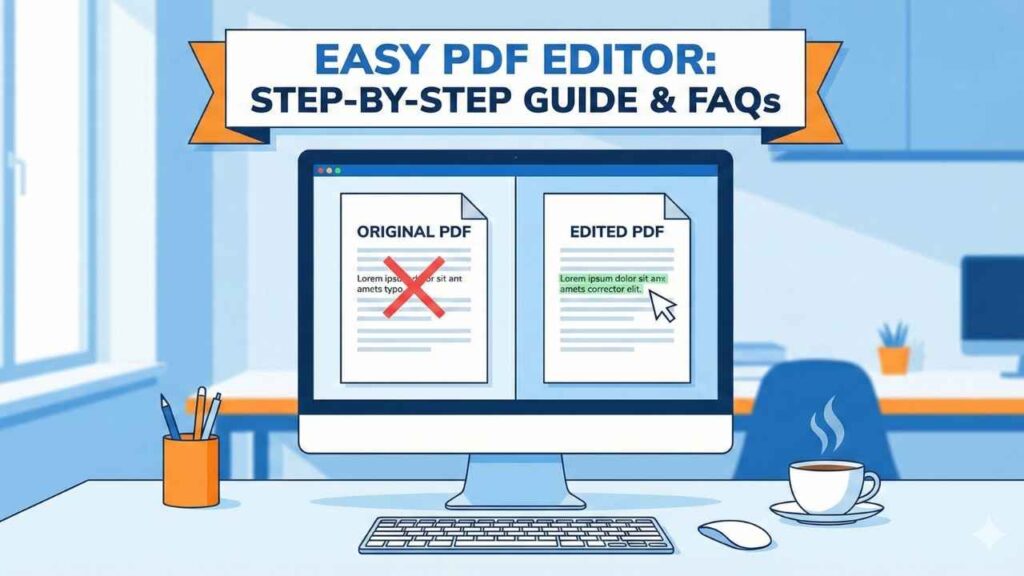
Unlike a Word document, a PDF is essentially a “digital print.” This means the text isn’t always free-flowing. A smart PDF editor uses a visual approach to solve this.
Instead of breaking the document apart, the tool loads your PDF as a high-quality visual layer. It then provides you with “White-out” or “Eraser” tools to cover up old information and “Text” tools to type new information on top. This ensures that the original layout of your document—including logos, tables, and margins—remains 100% intact.
Step-by-Step Process: How to Edit Your PDF
Ready to modify your document? Follow this simple step-by-step guide to using our PDF editor.
Step 1: Upload Your Document
Start by opening the PDF editor tool. You will usually see an “Upload” or “Choose File” button. Click this to select the PDF file from your computer or mobile device. The tool will process the file and render it on your screen.
Step 2: Analyze the Area to Edit
Once your document is visible, scroll to the section you need to change. Because this is a visual editor, you don’t need to worry about the text shifting around. Locate the specific word, date, or sentence you want to remove.
Step 3: Use the Eraser (or White-out) Tool
To remove old text, select the “Eraser” or “White-out” function from the toolbar.
- Click and drag your mouse over the text you want to delete.
- A white block will appear over the text, effectively hiding it from view.
- This acts exactly like correction fluid on physical paper.
Step 4: Insert New Text
Now that the old text is gone, switch to the “Text” tool.
- Click exactly where you want the new text to appear (on top of the whiteed-out area).
- Type your new content.
- Pro Tip: Use the font size and font family settings in the toolbar to match the style of the original document. If the original text was Arial size 12, set your tool to match it for a seamless look.
Step 5: Download and Save
Once you are satisfied with your edits, click the “Download” or “Save” button. The PDF editor will merge your changes with the original background and generate a brand-new PDF file. Check your “Downloads” folder to find your updated document.
Common Uses for a PDF Editor
- Correcting Typos: Fixing spelling errors in resumes or letters.
- Updating Forms: Changing dates, addresses, or invoice numbers on standard templates.
- Filling Applications: Typing into non-interactive forms rather than hand-writing them.
- Redacting Information: Using the eraser tool to permanently hide sensitive data (like phone numbers or ID numbers) before sharing a document.
Frequently Asked Questions (FAQ)
Q1: Is this PDF editor free to use?
Yes, this online tool is completely free. You can edit text, cover unwanted sections, and download your file without paying a subscription fee.
Q2: Will my document formatting get messed up?
No. Because this tool uses a visual overlay method, your original layout, images, and fonts remain exactly where they are. We only modify the specific areas you choose to touch.
Q3: Can I edit scanned PDFs?
Absolutely. Since scanned PDFs are essentially images, standard text editors cannot read them. However, our visual PDF editor treats the page as a canvas, allowing you to use the “Eraser” and “Text” tools effectively even on scanned images.
Q4: Do I need to create an account?
No registration is required. We believe in quick, hassle-free editing. You can upload, edit, and download immediately.
Q5: Is my data safe?
Security is our priority. The editing process happens in your browser session. We do not store your uploaded files on a public server, ensuring your personal information remains private.
Conclusion
Editing a PDF doesn’t have to be a headache. With the right PDF editor, you can make professional changes in a matter of minutes. Whether you are a student correcting an assignment, a freelancer updating an invoice, or a professional managing contracts, having a reliable online tool is essential.
Bookmark this page today so you never have to worry about un-editable PDF files again!
Pingback: Seo Meta Tags Generator For YouTube And Instagram - Tools Yard